Install SQLModel
The first step is to set up your project and add SQLModel.
Install uv, then create a project and add SQLModel:
$ uv init awesome-project --bare
$ cd awesome-project
$ uv add sqlmodel
---> 100%
uv add creates the project's virtual environment in .venv, adds SQLModel to pyproject.toml, and creates uv.lock so the same package versions can be installed later.
What these commands do
uv init: create a new Python project.awesome-project: create the project in a new directory with this name.--bare: create only the minimalpyproject.tomlfile, without generating a samplemain.py,README.md, or other files. You will create the application files yourself in the next steps of this tutorial.
Then cd awesome-project enters the new project directory before adding SQLModel.
uv will use a compatible Python version already installed on your system, or download one if needed.
When you run uv add, it selects compatible versions of SQLModel and all the packages SQLModel depends on. It records the exact versions in uv.lock, making it possible to install the same package versions later on another computer or when deploying the application.
Creating or updating this file is called locking the project dependencies. uv does this automatically when you add a package.
As SQLModel is built on top of SQLAlchemy and Pydantic, when you install sqlmodel they will also be automatically installed.
Using pip instead
If you prefer to manage a virtual environment and packages manually, create and activate a virtual environment and then install SQLModel with pip install sqlmodel.
Read the Virtual Environments guide for the detailed steps.
AI Agent Skills
SQLModel includes an official skill for AI coding agents. It is bundled with the package, so its guidance stays aligned with the version of SQLModel installed in your project and updates when you update SQLModel.
After installing SQLModel in your project, you can install the skill with Library Skills:
uvx library-skills
Note
uvx is an alias for uv tool run. It runs Library Skills in a temporary, isolated environment while Library Skills scans the packages installed in your project.
The skill is compatible with Codex, Claude Code, Cursor, GitHub Copilot, Gemini CLI, Pi, OpenCode, and most other coding agents. For Claude Code, select .claude/skills when asked where to install the skill.
Install DB Browser for SQLite
Remember that SQLite is a simple database in a single file?
For most of the tutorial I'll use SQLite for the examples.
Python has integrated support for SQLite, it is a single file read and processed from Python. And it doesn't need an External Database Server, so it will be perfect for learning.
In fact, SQLite is perfectly capable of handling quite big applications. At some point you might want to migrate to a server-based database like PostgreSQL (which is also free). But for now we'll stick to SQLite.
Through the tutorial I will show you SQL fragments, and Python examples. And I hope (and expect 🧐) you to actually run them, and verify that the database is working as expected and showing you the same data.
To be able to explore the SQLite file yourself, independent of Python code (and probably at the same time), I recommend you use DB Browser for SQLite.
It's a great and simple program to interact with SQLite databases (SQLite files) in a nice user interface.
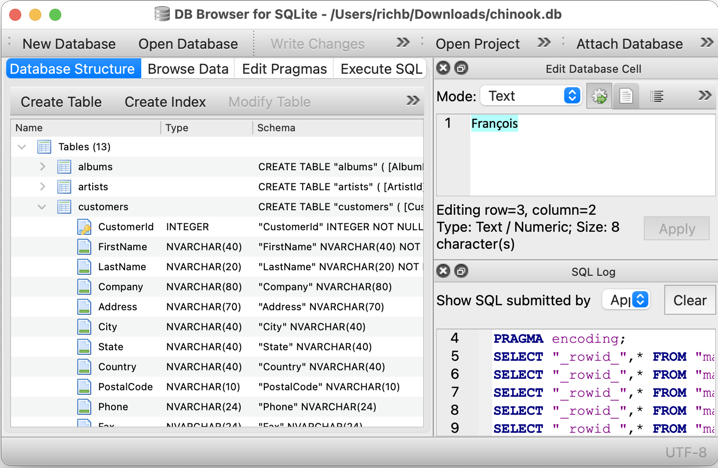
Go ahead and Install DB Browser for SQLite, it's free.
Next Steps
Okay, let's get going! On the next section we'll start the Tutorial - User Guide. 🚀